Managing Google Group Members
Managing CRC Google Group Members
Section titled “Managing CRC Google Group Members”Note: You can only access this through your hawaii.edu account.
Screenshots below can be clicked to view them full size.
Adding a User
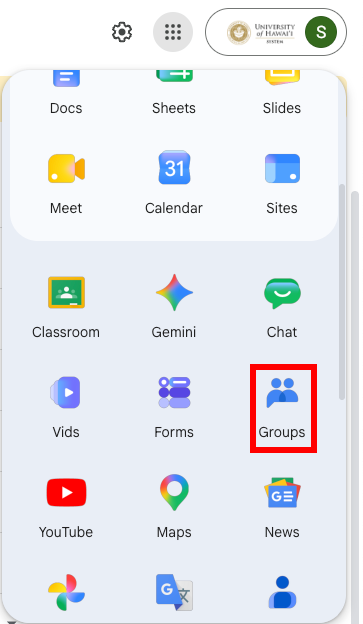
Section titled “Adding a User”- Navigate to the Google Groups Console
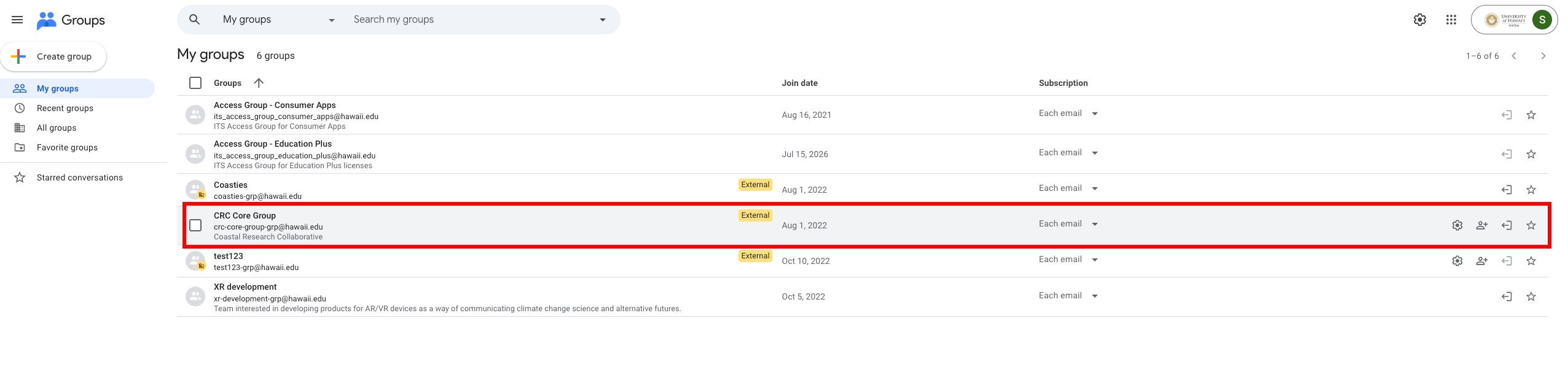
- Click on “CRC Core Group”
- If “CRC Core Group” does not show up in your list, reach out to skyler8@hawaii.edu for access
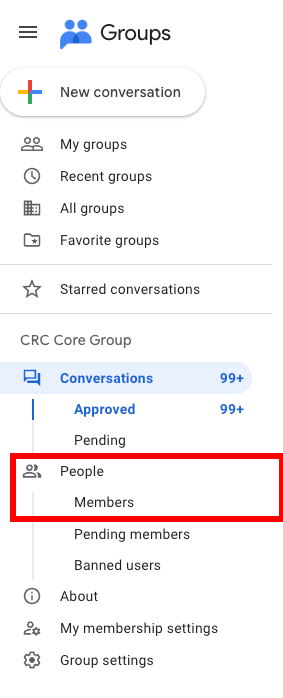
- On the left sidebar, navigate to the “Members” list
- Click “Add members”
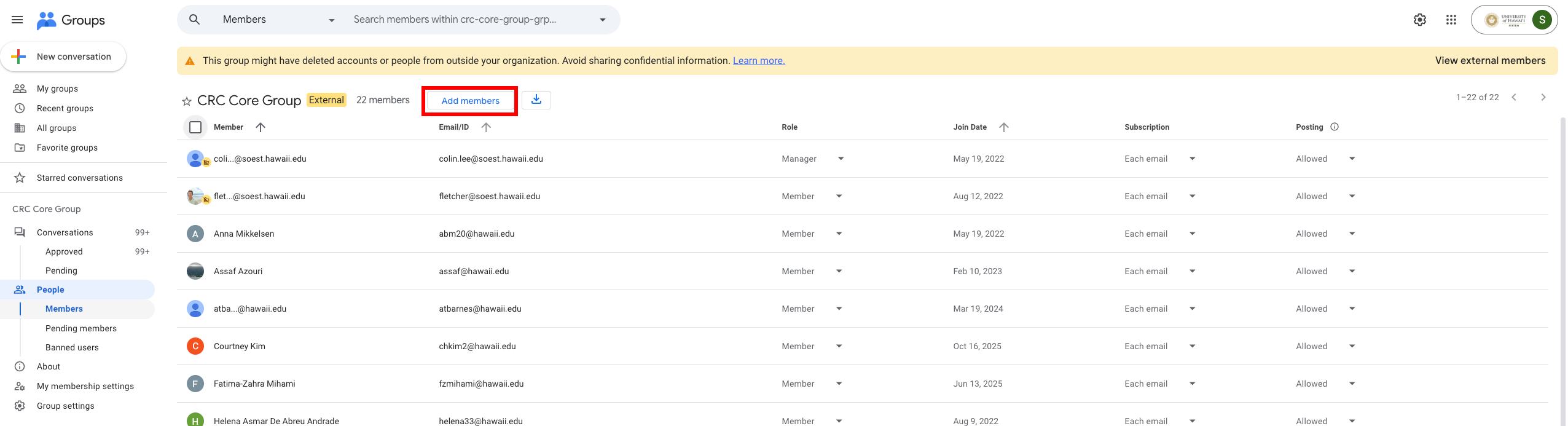
- In the “Group members” field, enter the user’s hawaii.edu email
- To also give the user a manager or owner role, enter their email in the respective field
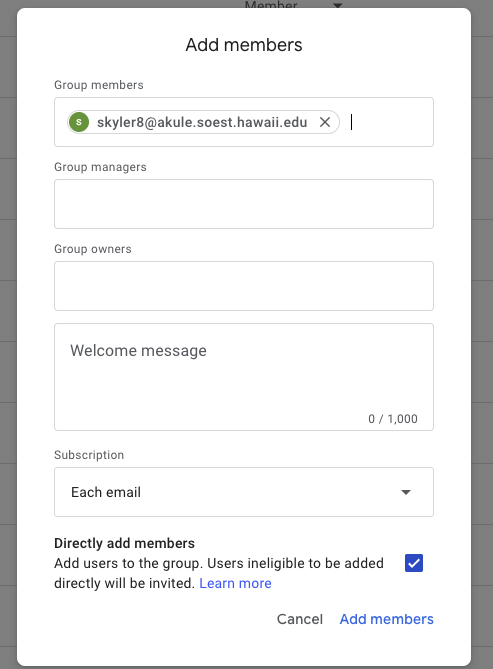
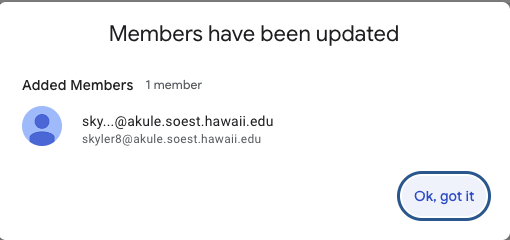
- Click “Add members” in the pop-up modal
Removing a User
Section titled “Removing a User”- Click on the user’s row (the row will be highlighted when selected)
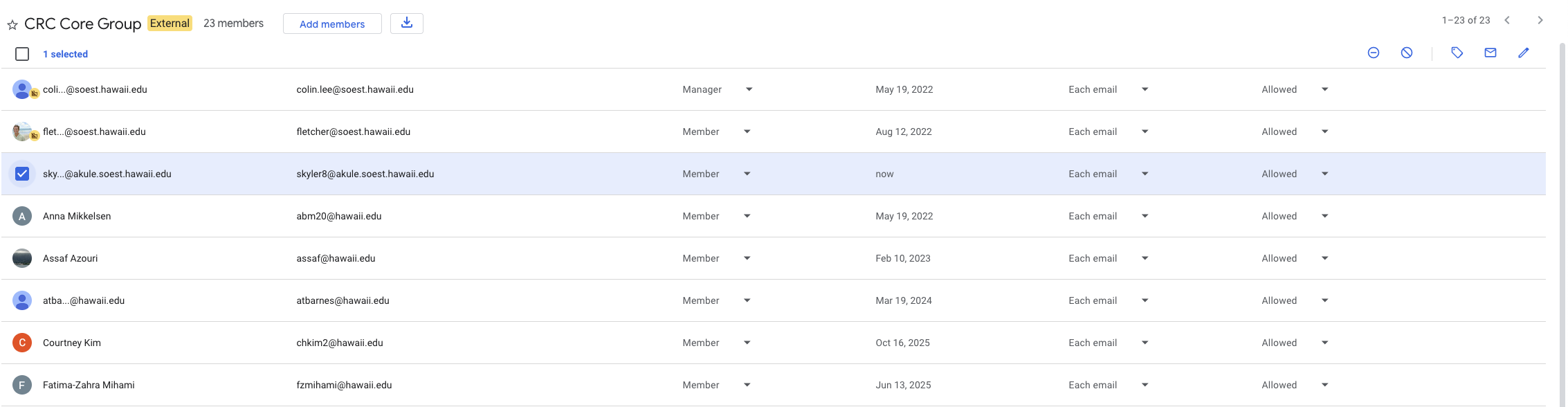
- In the top right of the members table, click the remove icon
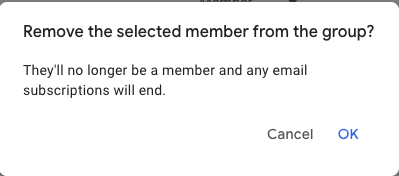
- In the confirmation pop-up, click “OK”